|
Home >Online Product Documentation >Table of Contents >Generate the Code Generate the CodeOnce the report is finished, we can generate XSLT or XQuery code to produce a report.
31. Click the Generate button on the toolbar.
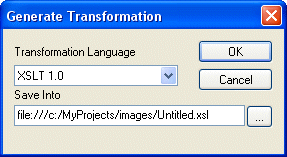
Stylus Studio displays the Generate Transformation dialog box. We want to use XSLT to generate our report, so we do not need to change the values for Document Type or Transformation Language.
32. The default name for the .xsl file is based on the .report file name. We change Untitled1.xsl to myMovieRatings.xsl and click OK.
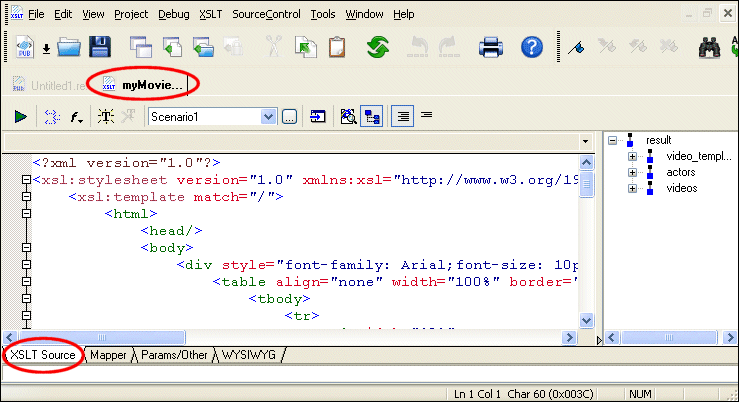
Stylus Studio opens the generated XSLT in the XSLT Editor, as shown in Figure 496.
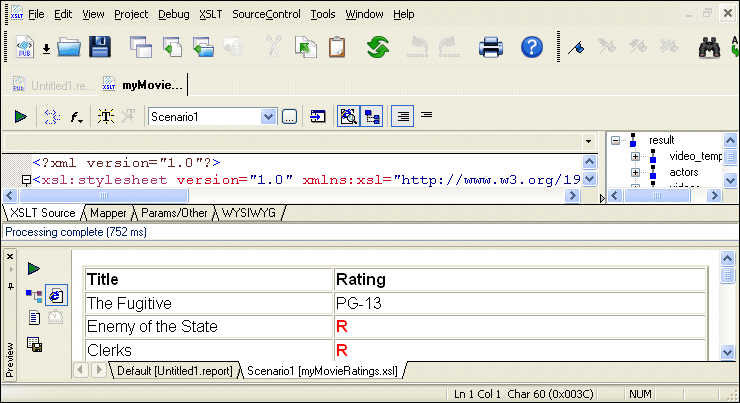
33. If we preview the XSLT, we see the same results as when we previewed the report in XML Publisher.
|

XML File Explorer
The XML File Explorer provides a productive, consistent, and easy-to-use interface for working with any data sources (relational data, EDI, binary, XML, CSV, and more) used in enterprise data integration projects.
XML Whitepapers
Learn how XML can help you meet your business objectives by reading free XML Whitepapers covering XML, XML Schema, XQuery, SQL/XML, and FIXML technolgies employed in real world case studies.
Microsoft .NET XML Tools for System.XML 1.0 and System.XML 2.0
Stylus Studio features integrated XML validation, XSLT transformation and XSLT debugging using the official Microsoft .NET XML processing components: System.XML 1.0 and System.XML 2.0.
XQuery Debugger
The Stylus Studio XQuery Debugger allows you to set breakpoints and step through the evaluation of any XQuery expression in a way that gives you complete control and visibility into the XQuery expression evaluation process.