Cart
Cart
|
Home >Online Product Documentation >Table of Contents >Naming Fields Naming Fields
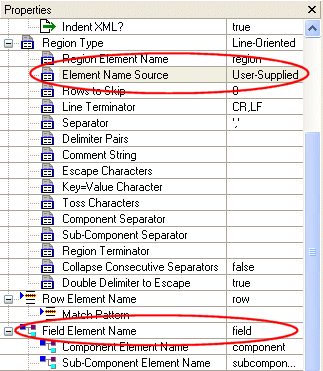
Every field in an input file - including fields in the same region and row - can have its own field element name. All field element names ( Field names are determined by two properties - Element Name Source in the Region Type properties, and Field Element Name, as shown in Figure 170.
The Element Name Source indicates the origin of the field name used in the XML output when converting the input file. The Field Element Name property specifies the actual value used to name the Using the Element Name Source PropertyThere are three values for the Element Name Source property:
The default value of the Field Element Name property is User-Supplied is the default setting for the Element Name Source property. Consider the following input file:
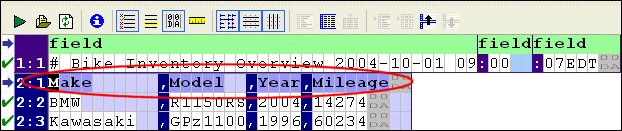
If you set Element Name Source to From First Row, the XML output uses Make, Model, and Year for the You can specify any row as the source for field names using the Get Field Names from This Row from the row's shortcut menu.
More About Using Rows for Field NamesWhen you use an existing row as the source for field names in the XML output, Stylus Studio changes the display of that row in the document pane to a darker blue to indicate this, as shown here: In addition, preceding rows in that region, if any, are grayed out, and the value of the Rows to Skip field in the Region Type properties changes to reflect this.
In the event that the first row has fewer names than there are fields in one or more subsequent lines in the file, Stylus Studio names the extra fields
How to Name FieldsTo provide user-supplied field names:
1. Display the Properties window if it is not already displayed (click View > Properties on the Stylus Studio menu).
2. Place the cursor anywhere in the field you want to name.
The Field Element Name property displays the current value for the field.
3. Type the new name in the Field Element Name property and press Enter.
Alternative:
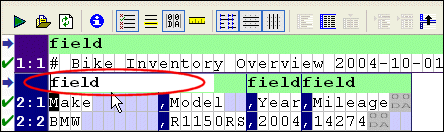
1. Double-click the field name in the document pane.
The field name field becomes editable.
2. Type a new value for field and press Enter.
To specify alternate sources for field names:
1. Display the Properties window if it is not already displayed (click View > Properties on the Stylus Studio menu).
2. Select the field name source you want to use from the Element Name Source drop-down list.
3. Press Enter.
|

XML PRODUCTIVITY THROUGH INNOVATION ™