|
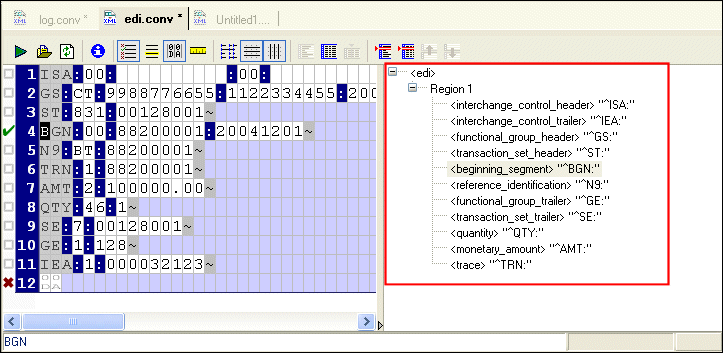
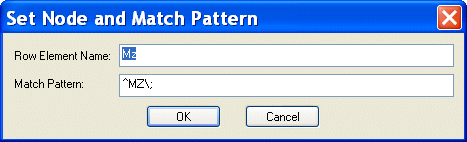
Home >Online Product Documentation >Table of Contents >Schema Pane Schema PaneThe schema pane displays a representation of the XML Schema for the XML document that will be output when the input file is converted to XML. You can double-click on a row element to display the Set Node and Match Pattern dialog box, shown in Figure 159. This functionality provides an alternative to editing the row name and specifying a match pattern in the Properties window. (To learn more about patterns and how to use them in your custom XML conversion definitions, see Pattern Matching.) You can also edit schema node names directly in the schema pane - just click twice to place the node name in edit mode. See Rows to learn more about specifying conversion properties for rows. |

XML Operations
Using XML Pipeline it's easy to visually specify a series of XML operations to apply on your XML data, including parsing, validating, converting and transforming, according to the needs of your business application.
XSLT Debugger
Stylus Studio's XSLT debugger - a requirement for building bug-free XSLT stylesheets and XML data transformation applications. Stylus Studio's XSLT debugger gives you complete visibility and control over the XSLT transformation process.
Introduction to the XQuery Mapper
This free online video demonstration covers Stylus Studio's synchronized XQuery editing and mapping tool which allows you to create any XQuery expression, either manually using Stylus Studio's XQuery editor.
XML Schema Editor
Stylus Studio's XML Schema Editor lets you easily develop advanced data models expressed in W3C XML Schema. Its synchronized split-pane interface shows both a visual XML Schema Diagram and the underlying code, and you can edit in either one.