Opening the Scenario Properties Dialog Box

Stylus Studio displays the Scenario Properties dialog box for DB-to-XML data sources when you create a new DB-to-XML data source. But you can create a new scenario or modify an existing one at any time.

There are two ways to open the Scenario Properties dialog box for DB-to-XML data sources. Both allow you to work on existing DB-to-XML data source scenarios or to create new ones.

To open the Scenario Properties dialog box:
  • Click in the DB-to-XML data source editor tool bar.
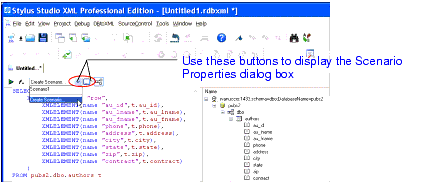
  • Select Create Scenario or an existing scenario from the scenario drop-down list at the top of the editor window.

Figure 390. Ways to Open the Scenario Properties Dialog Box

Converting Custom EDI Message Types to XML

Vital and valuable legacy data locked in proprietary EDI files? See how to use DataDirect XML Converters™ custom EDI message type tools to convert nonconformant EDI to XML.

XML Schema Editor

Stylus Studio's XML Schema Editor lets you easily develop advanced data models expressed in W3C XML Schema. Its synchronized split-pane interface shows both a visual XML Schema Diagram and the underlying code, and you can edit in either one.

Airlines, Aerospace and Defense

Want to know what airlines, aerospace and defense companies are soaring high with Stylus Studio 2006? Well now you can! Come check out these leading companies and soar with Stylus Studio 2006 yourself.

XML Programming

Simplify XML Programming with Stylus Studio's XML Pipeline, a powerful tool for modeling, programming, debugging and deploying complete XML programs.

Stylus Most Wanted

 
Free Stylus Studio XML Training:
W3C Member
