How to Define a Keyboard Shortcut

To define a keyboard shortcut for a Stylus Studio task:
1. From the Stylus Studio menu bar, select Tools > Keyboard.

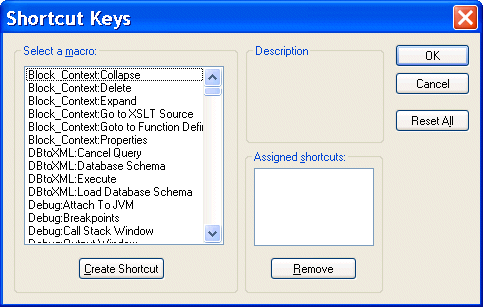
The Shortcut Keys dialog box appears.

Figure 115. Defining Shortcut Keys

2. In the Select a macro: field, select the macro for which you want to define a shortcut.

Tip


When you select a macro, Stylus Studio displays a description of what that macro does.

3. Click Create Shortcut.

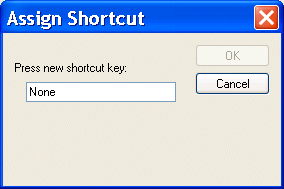
The Assign Shortcut dialog box appears.

Figure 116. Assigning a Shortcut Key

4. Press the key or keys that you want to be the shortcut. For example, Ctrl+E, F7, Alt+P.

The Assign Shortcut dialog box displays a message indicating whether or not that key combination is currently in use.

5. If the shortcut key is not already in use, click the OK button. Otherwise, try another shortcut key.

Stylus Studio closes the Assign Shortcut dialog box.

6. Click OK in the Shortcut Keys dialog box.

Support for DataDirect SequeLink

Learn about Stylus Studio's support for DataDirect SequeLink, an end-to-end database middleware solution that provides a universal thin client for ODBC, JDBC, ADO or .NET, providing flexibility for both client- and server-based deployments.

XSLT Profiler

Stylus Studio's XSL and XSLT profiler allows you to create detailed XSLT performance metrics profiles of any stylesheet in a processor-independent way.

Microsoft .NET XML Tools for System.XML 1.0 and System.XML 2.0

Stylus Studio features integrated XML validation, XSLT transformation and XSLT debugging using the official Microsoft .NET XML processing components: System.XML 1.0 and System.XML 2.0.

Banks That Bank on Stylus Studio for Enhanced XML Productivity

Guess what! You can pass go and collect 200 dollars because with Stylus Studio 2006 you can save your banking company time and labor in every day work activities. Come see which banking companies are already taking advantage of Stylus Studio today!

Stylus Most Wanted

 
Free Stylus Studio XML Training:
W3C Member