Home >
Online Product Documentation >
Table of Contents >
Other Ways to Open Files in Stylus Studio
Other Ways to Open Files in Stylus Studio
In addition to the File Explorer and drag-and-drop, you can also open files in Stylus Studio from the following places:
- The
Open dialog box (displayed when you select
File > Open from the menu, for example). By default, Stylus Studio opens the file in the editor associated with files of the type you select (see
Types of Files Recognized by Stylus Studio). If you want, you can choose a different editor - you might want to open an XSLT stylesheet in the XML Editor, for example - when opening files from the
Open dialog box.
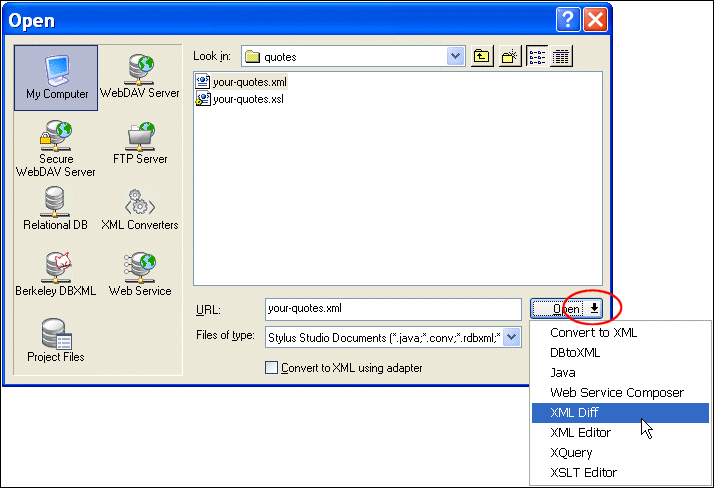
To specify a different module, click the down arrow to the right of the
Open button and select the module you want to use from the drop-down list as shown in
Figure 96.
|
|
Figure 96. Choose the Module to Use When Opening a File
-
Project window - either double-click the file, or select
Open or
Open With from the file's shortcut menu.
- Other file system browsers (like Windows Explorer, for example) - for files recognized by Stylus Studio, just double-click the file. See
Opening Unknown File Types.
 Cart
Cart