Cart
Cart
|
Home > Online Product Documentation > Table of Contents > Opening Stylesheets Opening StylesheetsTo open a stylesheet:
1. In the Stylus Studio tool bar, click
Open
 . Stylus Studio displays the
Open dialog box.
. Stylus Studio displays the
Open dialog box.
Alternatives: Select File > Open or press Ctrl+O.
2. If the stylesheet is not stored on a WebDAV or FTP server, navigate to the stylesheet and select it. Otherwise, click the button on the left that represents the location of the stylesheet you want to open. Now navigate to the file and select it.
3. Click
Open.
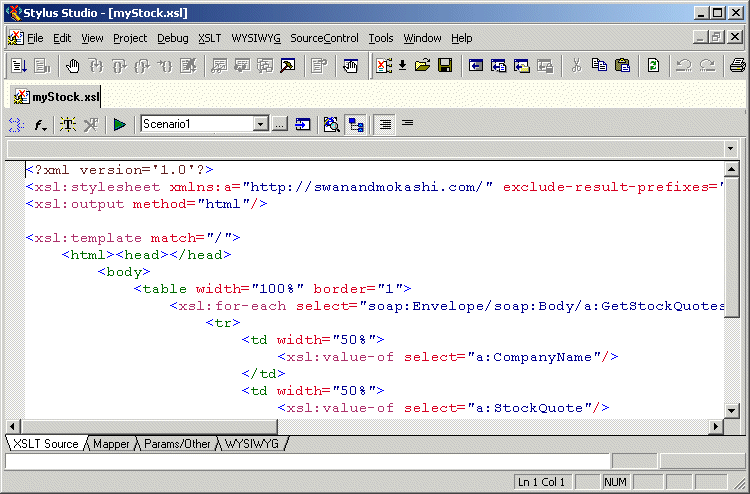
The XSLT stylesheet is displayed in the XSLT editor. After you open a stylesheet, you can edit it. However, to be able to apply the stylesheet to an XML document, you must create a scenario. See Applying Stylesheets. About the XSLT EditorThe XSLT editor, which displays a stylesheet when you open it, has four tabs at the bottom.
The XSLT Source, Mapper, and Params/Other tabs are always available. The WYSIWYG tab is available only when the stylesheet generates HTML.
Editing XSLT as XMLIf you want, you can edit an XSLT file as an XML file. To do this, open the stylesheet in the XML editor instead of in the XSLT editor. In the Open dialog box, click the down arrow in the Open button. Click XML Editor in the drop-down menu. A document can be open in the XML editor and in the XSLT editor at the same time. |

XML PRODUCTIVITY THROUGH INNOVATION ™