Cart
Cart
|
Home > Online Product Documentation > Table of Contents > Opening a Sample XML Document Opening a Sample XML DocumentTo open the your-quotes.xml sample XML document in Stylus Studio:
1. Select
File >
Open from the menu bar. Stylus Studio displays the
Open dialog box.
Alternatives
: Press Ctrl+O or click
Open
Alternative: If the Stylus Studio
2. Navigate to the
examples\quotes directory in your Stylus Studio installation directory.
3. Double-click
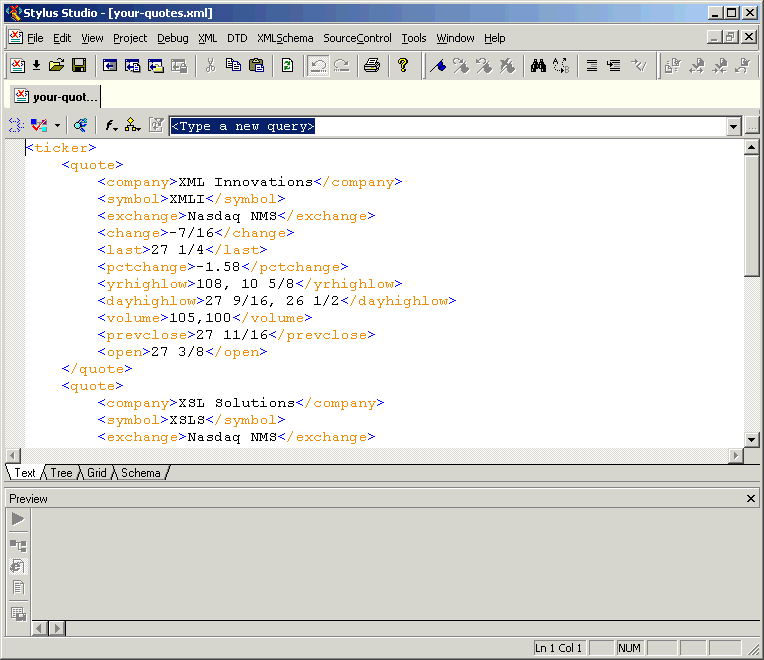
your-quotes.xml. Stylus Studio displays the
your-quotes.xml document in the XML editor. The initial view of the document is the
Text view, as you can see by the tab at the bottom of the window.
|

XML PRODUCTIVITY THROUGH INNOVATION ™
 .
.