Cart
Cart
|
Home > Online Product Documentation > Table of Contents > Registering Stylus Studio as the Default Application Registering Stylus Studio as the Default ApplicationYou can register Stylus Studio as the default application to use to open files with certain extensions. To register Stylus Studio as the default application:
1. From the Stylus Studio menu bar, select
Tools
>
Options.
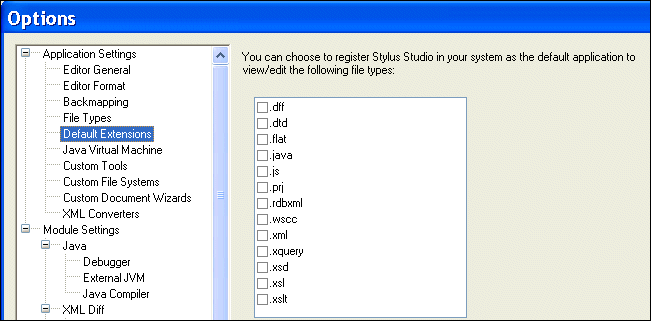
Stylus Studio displays the Options dialog box.
2. Under
Application Settings, click
Default Extensions.
Stylus Studio displays a list of file name extensions.
3. In the list, click the box next to the file name extension if you want Stylus Studio to be the default application for opening files with that file name extension. Stylus Studio displays a check next to each file name extension you register.
4. Click the
OK button.
UnregisteringYou can unregister Stylus Studio as the default application by returning to the Default Extensions page of the Options dialog box and clicking the check to remove it. When you unregister Stylus Studio, Stylus Studio restores the previous application's registration for that file type. |

XML PRODUCTIVITY THROUGH INNOVATION ™