|
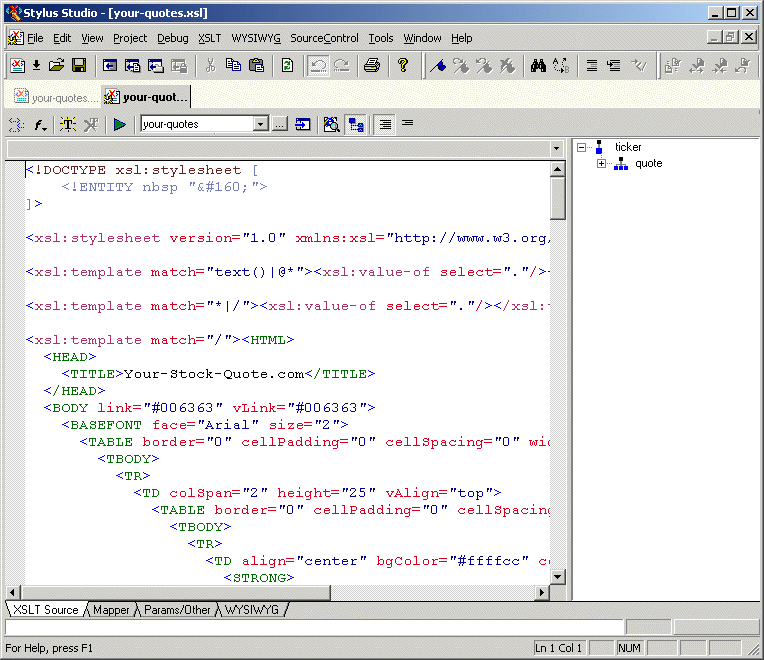
Home > Online Product Documentation > Table of Contents > Opening a Sample Stylesheet Opening a Sample StylesheetTo open the your-quotes.xsl sample XSLT stylesheet in Stylus Studio:
1. In the menu bar, select
File >
Open. Stylus Studio displays the
Open dialog box.
Alternatives:
Press Ctrl+O or click
Open
2. Navigate to the
examples\quotes directory in your Stylus Studio installation directory.
Alternative: If the Stylus Studio
3. Double-click
your-quotes.xsl. Stylus Studio displays the
your-quotes.xsl document in the
XSLT Source tab of the XSLT editor.
As with the XML Editor, Stylus Studio uses different colors to distinguish markup, tag names, and data in the XSLT Editor. |

Configuring the Java Runtime Engine or Java Development Kit
This page identifies the Stylus Studio modules that require Java runtime and Java compiler components, where you can download these Java components, and how to force Stylus Studio to detect new or changed Java components.
HTML to XML Importer
Convert HTML to XML with the Stylus Studio HTML to XML Importer, a powerful, visual utility for Converting HTML to XML with ease.
XML-to-XML Mapper
XML to XML mapping tools in Stylus Studio provide a powerful visual interface for mapping XML data from-and-to virtually any data format using industry-standard XSLT and XQuery technologies.
XML Validator
Stylus Studio has a built-in XML validator that supports industry-standard DTD and XML Schema validators including MSXML 4.0 SAX, MSXML 4.0 DOM, Microsoft .NET XML Parser (System.XML), Xerces-J 2.5.1, XSV 2.6, etc. Validate XML with Stylus Studio.