Cart
Cart
|
Home >Online Product Documentation >Table of Contents >Setting Default Options for Processors Setting Default Options for ProcessorsIf you want, you can set default values for XSLT processor options and designate a processor other than the built-in processor as the default processor used whenever you create an XSLT scenario. You can always override the default processor and individual processor settings at the scenario level. To set defaults for XSLT processors:
1. From the Stylus Studio menu, select Tools>Options.
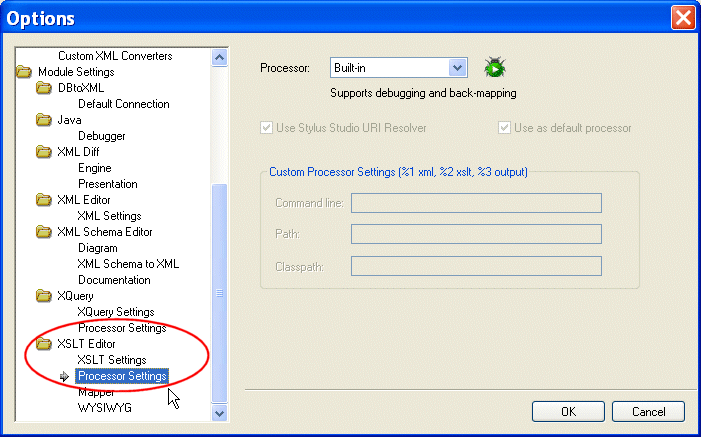
Stylus Studio displays the Options dialog box.
2. Select Module Settings >XSLT Editor > Processor Settings.
3. Select the processor for which you want to specify default settings from the Processor drop-down list.
4. If required, complete processor-specific settings. (Click the Settings button.)
5. If you want this processor to be used as the default processor for all XSLT scenarios, click the Use as default processor check box.
6. Click OK.
|

XML PRODUCTIVITY THROUGH INNOVATION ™