Home >Online Product Documentation >Table of Contents >The Stylus Studio XQuery Editor
The Stylus Studio XQuery Editor
In Stylus Studio, you use the XQuery editor's textual editor and graphical interfaces to work with XQuery. The XQuery editor consists of two tabs, XQuery Source and Mapper; you can use either or both tabs to compose an XQuery.
By default, Stylus Studio gives new XQuery files a .xquery extension. You can save XQuery using any extension you choose. If you decide to use a different extension, use the File Types page of the Options dialog box to associate that extension with the XQuery editor.
XQuery Source Tab
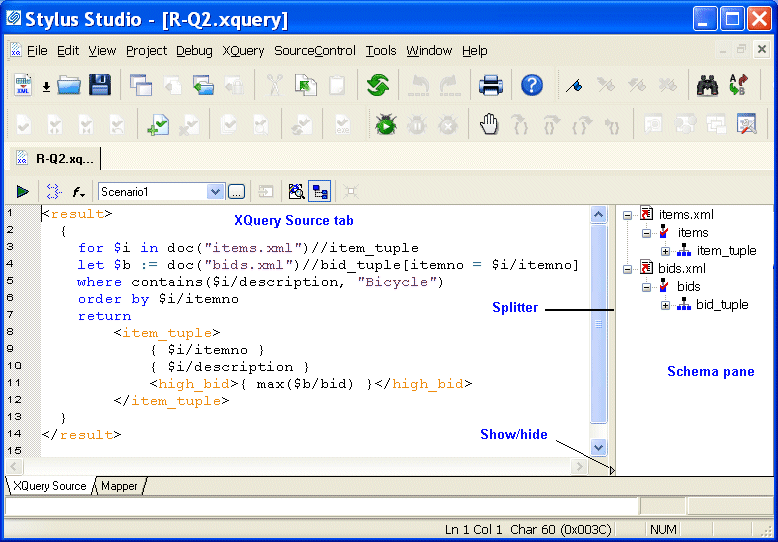
You can use the XQuery Source tab to view, compose, preview, and debug your XQuery. For example, you can edit query text directly, set breakpoints, and debug your XQuery on this tab. The tab is divided into two panes:
- An editing pane, which shows the XQuery code, and
- A schema pane, which displays the schema of the source documents you are using to build your XQuery. You can hide the schema pane to view more of the XQuery code by clicking the show/hide button at the base of the splitter, which allows you to vary the relative width of the two panes.
Tip
|
|
You can drag schema objects directly to the editing pane. This allows you to quickly create FLWOR and XPath expressions, for example, without writing any code or introducing typographical errors to the source.
|
|
Figure 284. XQuery Source Tab
Stylus Studio's Sense:X automatic completion feature is supported for XQuery - Sense:X simplifies editing and helps ensure well-formed XML for queries you compose manually.
You can define other XQuery editor settings on the Editor General and Editor Format pages of the Options dialog box. (Click Tools > Options.)
You can preview the XQuery result by clicking the Preview Result button ( ). Results are displayed in the Preview window at the bottom of the XQuery editor, and, optionally, in any external application that you specify.
Mapper Tab
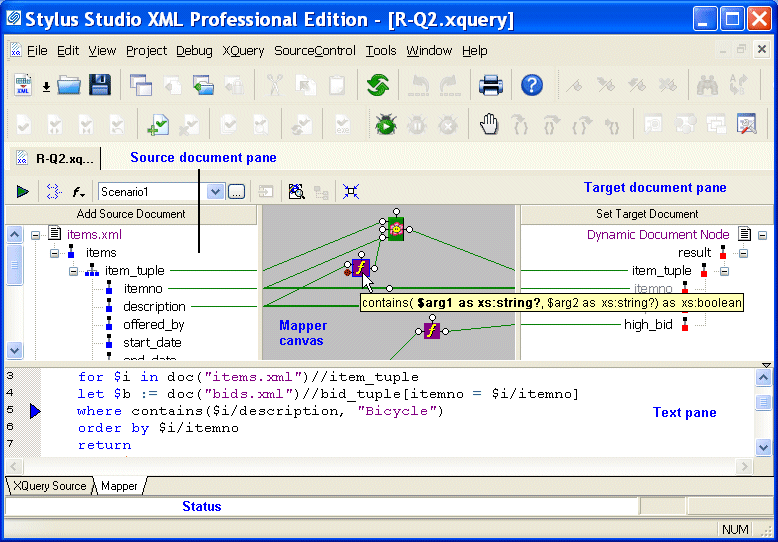
The Mapper tab provides an interface that allows you to compose and view your XQuery graphically.
|
Figure 285. XQuery Editor Mapper Tab
The Mapper tab consists of these areas:
- Source document pane, in which you add one or more source documents.
- Target structure pane, in which you specify the structure of the result you want the XQuery to return.
- Mapper canvas, on which you can define conditions, functions, and operations for source document nodes to filter return values that are then mapped to the target node.
- Text pane. The text pane allows you to view the XQuery code while using the mapper. This is a great way to see how changes to the mapper affect the XQuery code, without the need to switch to the XQuery Source tab. Of course, the XQuery Source tab is available if you prefer working with the code using a full-page view. All views - Mapper tab, XQuery Source tab, and the text pane - are synchronized.
As with the XQuery Source tab, you can preview XQuery results from the Mapper tab by clicking the Preview Result button (
). Debugging, however, can be performed from the XQuery Source tab only.
See Building an XQuery Using the Mapper to learn more about the features of the XQuery editor Mapper tab.
XQuery Source and Mapper Tab Interaction
Changes made to an XQuery on the Mapper tab are reflected on the XQuery Source tab, and vice versa. For example, if you start writing your XQuery on the XQuery Source tab and then click the Mapper tab, Stylus Studio displays a graphic representation of your XQuery code. If you next edit the XQuery graphically (adding a function or a FLWOR block and mapping the return value to a node in the target structure, for example) and then return to the XQuery Source tab, you will see that Stylus Studio has updated the XQuery code based on your edits on the Mapper tab. Viewing the code on the XQuery Source tab that Stylus Studio creates based on actions performed on the Mapper tab can be a useful aid to learning XQuery syntax.
Note
|
|
An incomplete XQuery artifact created on the Mapper tab is removed from the XQuery you are composing when you click the XQuery Source tab because it cannot be expressed in XQuery given its current definition. For example, imagine creating a FLWOR block that is not mapped to a node in the target structure. The FLWOR (pronounced "flower") block appears on the Mapper tab, but Stylus Studio does not generate any code for it or display it on the XQuery Source tab, and when you return to the Mapper tab you will see that the FLWOR block has been removed.
|
 Cart
Cart