Cart
Cart|
|
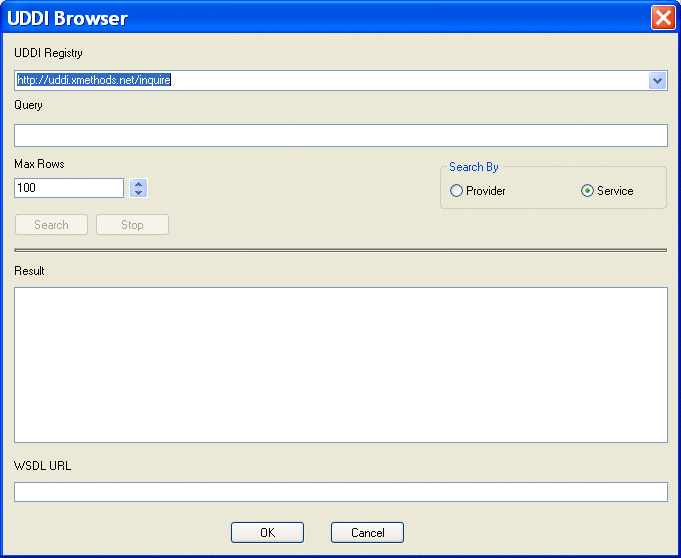
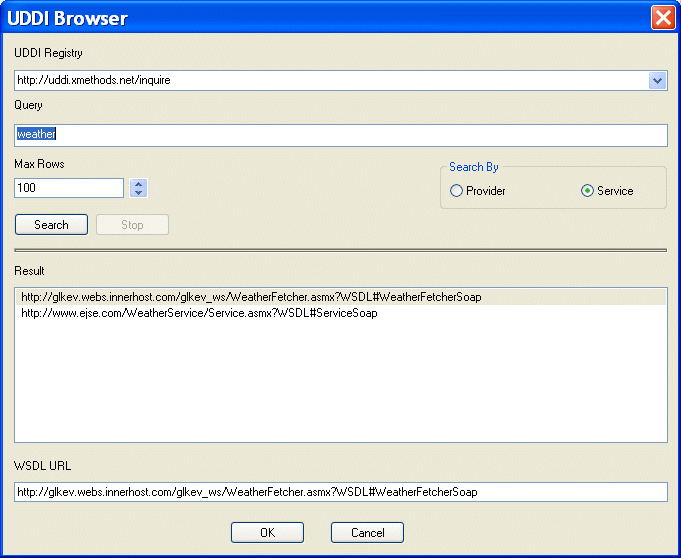
Home >Online Product Documentation >Table of Contents >Browsing UDDI Registries Browsing UDDI RegistriesYou browse UDDI registries and search for published Web services (and the WSDLs that describe them) using the UDDI Browser dialog box. The UDDI Registry field displays a list of public UDDI registries. You use the Query field (obscured by the UDDI Registry drop-down list in the preceding illustration) to specify the keywords you want to use to search a UDDI registry from this list. For example, if you are building a weather application, you might type weather in the Query field to search for weather-related Web services. Keywords are matched against the Web service and company information available in the UDDI registry, not against the WSDL itself. Generally speaking, the same search executed against different UDDI registries will yield different results. In addition to specifying keywords, the UDDI Browser dialog box allows you to When you execute the search (by clicking the Search button), Stylus Studio displays search progress in a status bar. You can stop the search at any time by clicking the Stop button. When the search is complete, the URLs for any WSDLs that meet your search criteria are displayed in the Result field. For example, if you search the XMethods UDDI registry for Web services related to weather, the Stylus Studio UDDI Browser returns the following results: When you select a WSDL URL, Stylus Studio displays the operations supported by the Web service in the Web Service Call Composer. The first operation is selected by default, and the SOAP request that defines it is displayed in the XML editing area. Web services can provide multiple operations. See Modifying a SOAP Request. If you do not see a suitable WSDL URL in the UDDI registry you searched, modify your query in the UDDI Browser and try your search again, or search a different UDDI registry. How to Browse UDDI RegistriesTo browse UDDI registries:
1. In the Web Service Call Composer, click the UDDI button.
The UDDI Browser dialog box appears.
2. In the UDDI Registry field, type the URL of a UDDI registry, or select a UDDI registry from the drop-down list.
3. In the Query field, enter the string you want to use to search the selected UDDI registry for available Web services.
4. Optionally, change the following:
5. Click the Search button.
Search progress is displayed in a status bar. When the search is complete, WSDLs that match the search criteria you specified are displayed in the Results field.
6. Select the WSDL that defines the Web service operation for which you want to compose a SOAP request and click OK.
The UDDI Browser dialog box closes and you are returned to the Web Service Call Composer. |

XML PRODUCTIVITY THROUGH INNOVATION ™