Adding File Types to Stylus Studio

You use the procedure described in this section to associate a file type (.txt, for example) with a specific Stylus Studio module or editor. Once you do this, any time you open a file of that type from within Stylus Studio (using the File Explorer, for example), that file is opened in the editor you specify.

You can optionally specify that you want to use Stylus Studio as the default editor for files of this type, regardless of where the file is opened (from a file browser like Total Commander, for example).

To add a file type to Stylus Studio:
1. From the Stylus Studio menu bar, select Tools > Options.

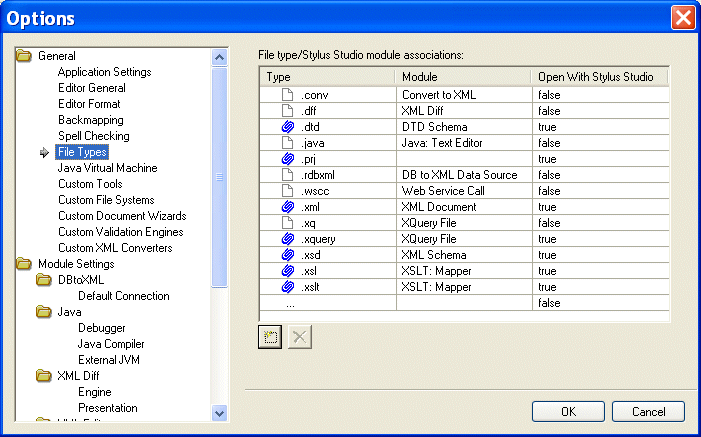
Stylus Studio displays the Options dialog box.

2. Under General, click File Types.

The File Types page appears.

Alternative: Double-click the Type field.

4. Type the new extension, including the period, and press Enter.

Stylus Studio adds the file type and selects a default module in the Module field.

5. Optionally, select a different module using the drop-down list in the Module field.
6. If you want to always use Stylus Studio to open files of this type, change the value in the Open with Stylus Studio field to True.
8. When you are done, click OK.

Deleting File Types

To delete a file type:
1. Click the file type you want to delete.
2. Click the Delete button.
3. Click OK.

Flat File to XML Mapper

Convert any flat file to XML in 3 clicks or less using the Stylus Studio Flat File to XML Mapper. Supports tons of different file encodings: UTF-8, UTF-16, US-ASCII, ISO-8859-1, and more.

XQuery Talk

Join the XQuery Talk mailing list for a practical discussion about XQuery. It's a place to work together to learn a new language, talk about problem solutions, discuss engines and implementations, chat about the latest XQuery news and more.

Consumer Food Products

Want to know what special ingredient is in these consumer food product companies work enviornment? Well it's a touch Stylus Studio that give these consumer food product companies the extra edge they need for producing such high quality food products!

Computing XML Differences in Stylus Studio

See for yourself just how easy it is to visually compare different XML files or folders using Stylus Studio's powerful new XML Differencing Utility. Quickly and easily analyze and merge changes made to different XML documents!

Stylus Most Wanted

Site Map | Privacy Policy | Terms of Use | Trademarks
Free Stylus Studio XML Training:
W3C Member
Stylus Studio® and DataDirect XQuery™are products from DataDirect Technologies, is a registered trademark of Progress Software Corporation, in the U.S. and other countries. © 2004-2007 All Rights Reserved.