Cart
Cart
|
Home >Online Product Documentation >Table of Contents >Defining a simpleType in the Diagram View Defining a simpleType in the Diagram ViewThis section describes the procedures for defining simpleTypes in the Diagram view. It covers the following topics: Before You BeginMany of the editing features used in this section are described in Defining an XML Schema Using the Diagram Tab - Getting Started. You should familiarize yourself with that material if you have not done so already. Defining an Atomic simpleTypeThis topic provides the steps for defining an atomic simpleType in the Diagram view. In the Diagram view, to define an atomic simple type:
1. Right-click the schema node  to display the shortcut menu.
2. Select Add > simpleType.
The new simpleType appears in the diagram; its properties are displayed in the Properties window.
3. Change the default name to the name of the new simpleType and press Enter.
Specifying a Restriction for a simpleType - QuickEditQuickEdit is a feature that combines commonly-performed editing operations, such as specifying a restriction for a simpleType. You can also perform this operation in a different way. See Specifying a Restriction for a simpleType - Manually. To specify a restriction for a simple type using QuickEdit:
1. Right-click the simpleType node  to display the shortcut menu.
2. Select QuickEdit > Derive by restriction from the shortcut menu.
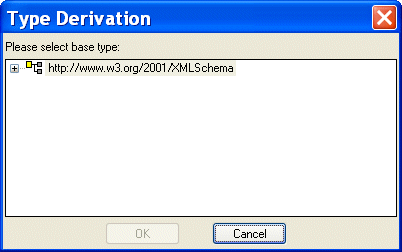
The Type Derivation dialog box appears. The Type Derivation dialog box displays the W3C XML Schema, as well as any referenced XML Schemas.
3. Expand the schema (click the plus sign) to display the base types associated with that XML Schema.
4. Select the type on which you wish to base the simpleType you are defining and click OK.
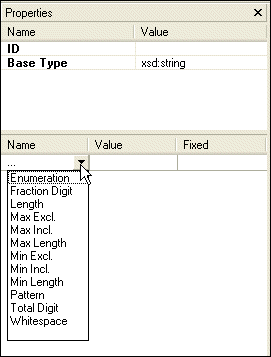
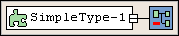
The simpleType is updated with an element that identifies the restricted type: In the lower half of the Properties window, Stylus Studio displays a section that allows you to specify facets - values that define the constraint on the range of values allowed by the base type.
5. Click the Name field and select a facet type.
Stylus Studio displays only those facets that are allowed for the base type you selected. For a description of each facet, see About Facet Types for simpleTypes.
6. Click the Value field for a facet you want to specify.
7. Enter a value for the new facet.
Specifying a Restriction for a simpleType - ManuallyThis procedure describes how to specify a restriction for a simpleType manually. It is an alternative to the procedure described in Specifying a Restriction for a simpleType - QuickEdit. To specify a restriction for a simple type manually:
1. Right-click the simpleType node to display the shortcut menu.
2. Select Add > Restriction from the shortcut menu.
The simpleType is updated with a restriction icon:
3. Select the restriction icon if it is not already selected.
4. In the Properties window, select the type on which you want to base the simpleType you are defining from the Base Type field.
At the bottom of the Properties window, Stylus Studio displays a section that allows you to specify facets - values that define the constraint on the range of values provided by the base type.
5. Click the Name field and select a facet type.
Stylus Studio displays only those facets that are allowed for the base type you selected. For a description of each facet, see About Facet Types for simpleTypes.
6. Click the Value field for a facet you want to specify.
7. Enter a value for the new facet.
Defining List and Union simpleTypes
The procedure for defining
1. Create the simpleType as described in Defining a simpleType in the Diagram View.
2. Select the type (list or union) from the shortcut menu (right-click the new simpleType and select Add > List or Add > Union).
3. Specify the nodes that comprise the simpleType's list or union. These types are restricted to annotations and other simpleTypes.
How you perform this last step depends on whether you are adding new or existing
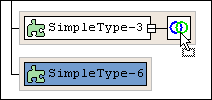
Notice that the pointer changes shape when you place it over an appropriate target node. |

XML PRODUCTIVITY THROUGH INNOVATION ™