Cart
Cart
|
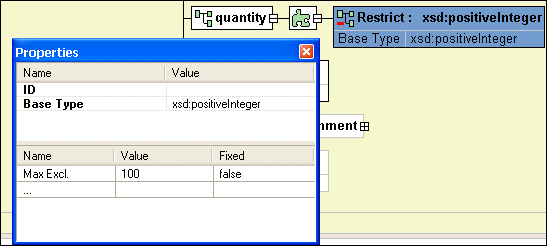
Home >Online Product Documentation >Table of Contents >Node Properties Node PropertiesThe Properties window is available when you are using the Diagram or Tree tab of the XML Schema Editor. When the Properties window is open, it displays the properties of the node you click. If you have selected a restricted node from a redefined XML Schema, Stylus Studio displays a separate section in the lower half of the Properties window for you to specify the facets, as shown in Figure 253. If the Properties window is not visible, select View > Properties from the Stylus Studio menu.
To change the value of a property, click the property field and enter the new value. If only certain values are allowed, Stylus Studio displays a drop-down list of the valid choices. Each type of node has its own set of properties. For a description of each property, see About XML Schema Properties. Working with Properties in the DiagramYou can also display and edit properties within the nodes in the diagram. See Displaying Properties for more information on this feature. |

XML PRODUCTIVITY THROUGH INNOVATION ™