How to Define a Keyboard Shortcut

To define a keyboard shortcut for a Stylus Studio task:
1. From the Stylus Studio menu bar, select Tools > Keyboard.

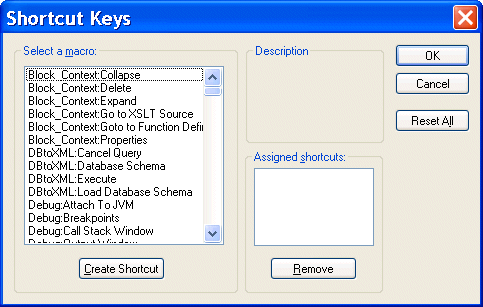
The Shortcut Keys dialog box appears.

Figure 115. Defining Shortcut Keys

2. In the Select a macro: field, select the macro for which you want to define a shortcut.

Tip


When you select a macro, Stylus Studio displays a description of what that macro does.

3. Click Create Shortcut.

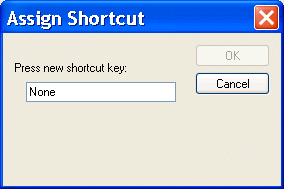
The Assign Shortcut dialog box appears.

Figure 116. Assigning a Shortcut Key

4. Press the key or keys that you want to be the shortcut. For example, Ctrl+E, F7, Alt+P.

The Assign Shortcut dialog box displays a message indicating whether or not that key combination is currently in use.

5. If the shortcut key is not already in use, click the OK button. Otherwise, try another shortcut key.

Stylus Studio closes the Assign Shortcut dialog box.

6. Click OK in the Shortcut Keys dialog box.

XML to PDF

Convert XML to PDF using Stylus Studio's XML publishing tools - the easiest way to design beautiful document layouts for use in XSL:FO based multi-channel publishing and single source publishing applications.

Open XSLT Architecture

Learn how Stylus Studio's Open XSLT Architecture enables you to use any of the popular industry-standard XSLT processors (like Saxon, Xalan-J, MSXML, Microsoft .NET, and others) for all your XSLT development tasks.

XML Code Folding

Stylus Studio's XML Editor features XML code folding, a powerful and intuitive way to maximize limited screen real-estate and help make sense of large XML files.

XML Well-Formedness Checker & XML Indenter

Tidy up your XML documents with powerful integrated XML editing utilities including a single-click XML formatter, pretty printer, XML indenter and XML well formedness checker.

Stylus Most Wanted

 
Free Stylus Studio XML Training:
W3C Member