Setting a Text Value

You can set text values for target structure elements and attributes. You might want to do this if you are composing a mapping whose target structure contains an element or attribute that requires a fixed value, instead of using a value gathered from an input XML document.

Example

Here is the XSLT code Stylus Studio generates for the Title element when a text value is specified for it:

<Book>
               
	<Title>Confederacy of Dunces</Title>
               
</Book>


Stylus Studio displays a red letter T for nodes for which you define a text value:

Figure 255. Symbols for Nodes With Text Values

There are two ways to set a text value:

  • On the mapper canvas
  • On the target node

How to Set a Text Value on the Mapper Canvas

To set a text value on the mapper canvas:
1. Right-click on the mapper canvas.

The shortcut menu appears.

2. Select Text Block from the shortcut menu.

The text block appears on the mapper.

Figure 256. Text Block

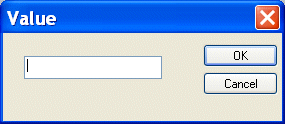
Double-click the text block to display the Value dialog box.

Figure 257. Value Dialog Box

Tip


You can also display the Value dialog box by selecting Properties from the text block shortcut menu (right click).

3. Type a value and click OK.
4. Drag a link from the text block's output port to the target node to which you want to assign the text value.

Note


Unless the text block is linked to another block (such as a logical operator or an XPath function), Stylus Studio removes it from the mapper canvas if you leave and then return to the Mapper tab. In this case, a red T is displayed next to the target node's name.

How to Set a Text Value on the Target Node

To set a text value on a target node:
1. Right-click the node for which you want to set the text value.

The shortcut menu appears.

2. Select Set Text Value from the shortcut menu.

The Value dialog box appears.

Figure 258. Value Dialog Box

3. Type the string you want to use as the text value and click OK.

XML Project

Stylus Studio's Project Window is an intuitive, visual feature for organizing files belonging to a project. It supports different file-type icons and nested folders; many helpful options are available from the context menu.

WSDL Editor

WSDL Editor featuring a graphical WSDL viewer, syntax help, Java Web Service code generation and more. Simplify Web Services development with Stylus Studio's Web Service Description Language (WSDL) Editor today!

JSP Editor

Edit and Validate JSP 1.2 and JSP 2.0 documents. Includes JSP syntax coloring, JSP code completion and more.

Apache XML Project

The Apache XML Project provides standards-based, open-source XML solutions for working with W3C XML technologies including XML, XSL, XSLT, XSL:FO XPath, Web services and more. Learn how Stylus Studio provides support for all Apache XML projects.

Stylus Most Wanted

 
Free Stylus Studio XML Training:
W3C Member